Change who can access your accounts

You can update who has access to your accounts quickly and easily in Business Internet Banking and the app.

One Full Access User can start the process. If additional people are required to approve your request, they can do this by email, and do not need to be online banking users.

Business Internet Banking

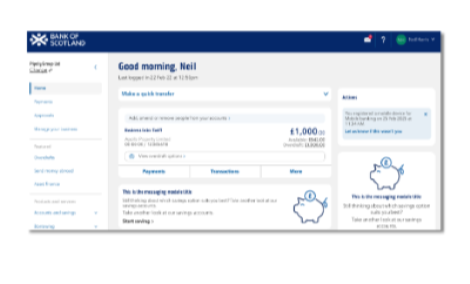
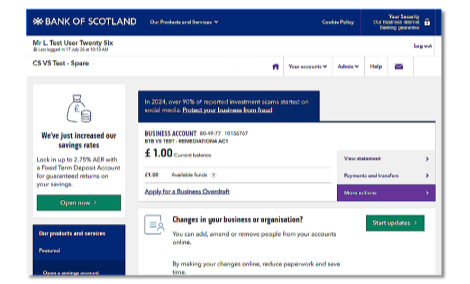
From August 2026, we're refreshing Business Internet Banking with new branding, an updated design and improved navigation. Over the next few weeks, you may see either the current layout or the new experience.

The guidance below will help you with both versions.

Log in to Business Internet Banking

It's easy in the app

  1. Select the profile and settings icon in the top-right corner.
  2. In the 'Business Profile' tab, select 'Manage'.
  3. Under the 'People in your business and signing rules' tab, select 'Manage your people and controls' to get started.
More on the app

It's easy in the app

  1. Select the profile and settings icon in the top-right corner.
  2. In the 'Business Profile' tab, select 'Manage'.
  3. Under the 'People in your business and signing rules' tab, select 'Manage your people and controls' to get started.

Not registered for the app?

Not registered for the app?

Get started

Business Internet Banking

From August 2026, we're refreshing Business Internet Banking with new branding, an updated design and improved navigation. Over the next few weeks, you may see either the current layout or the new experience. The guidance below will help you with both versions.

Log in to Business Internet Banking

Business Internet Banking guidance

To Change who can access your accounts using Business Internet Banking, you’ll need to log in. Log in to Business Internet Banking.


If you see the new look, use these steps

  1. Select ‘Manage your business' from the menu on the left-hand side of the screen then ‘Your business’ tab.
  2. Under 'People in your business and signing rules' click on 'Manage your people and controls’.
  3. Select required option.
 

If you don’t see the new look, use these steps

  1. Select ‘Admin’ then 'Your business' tab.
  2. Under 'People in your business and signing rules' click on ‘Manage your people and controls’.
  3. Select required option.

Business Internet Banking guidance

To change who can access your account using Business Internet Banking, you'll need to log in. Log in to Business Internet Banking


If you see the new look, use these steps. 

  1. Select ‘Manage your business' from the menu on the left-hand side of the screen then ‘Your business’ tab.
  2. Under 'People in your business and signing rules' click on 'Manage your people and controls’.
  3. Select required option.

If you don't see the new look, use these steps.

  1. Select ‘Admin’ then 'Your business' tab.
  2. Under 'People in your business and signing rules' click on ‘Manage your people and controls’.
  3. Select required option.

What you can do online

Full Access Users can:

  • See all your full and limited power signatories
  • See everyone with Business Internet Banking access
  • Add or remove signatories from your account
  • Add or remove access to Business Internet Banking
  • Change someone’s access to the account or Business Internet Banking
  • Change signing rules for approving payments, cheques, and other tasks.

What you can do online

Full Access Users can:

  • See all your full and limited power signatories
  • See everyone with Business Internet Banking access
  • Add or remove signatories from your account
  • Add or remove access to Business Internet Banking
  • Change someone’s access to the account or Business Internet Banking
  • Change signing rules for approving payments, cheques, and other tasks.
Plant illustration

Tell us what you'd like to do

We'll ask a few questions and show you the best way to complete your request.


Register for Business Internet Banking

Select start registration to begin.

Can't complete this online? Download and complete the Instruction to vary your authority 14080 (PDF, 564 KB) form and return all pages by email or post.


To avoid delays, please complete the form on your computer before printing it.
If you fill it in by hand, please use a black pen only.

Use this form to change your mandate

Complete this form and return all pages by email or post:
Instruction to vary your authority 14080 (PDF, 564 KB).

Do you also need to change your personal details?

Change your personal details


To avoid delays, please complete the form on your computer before printing it.
If you fill it in by hand, please use a black pen only.

Use this form to change your mandate

Complete this form and return all pages by email or post:
Instruction to vary your authority 14080 (PDF, 564 KB).


To avoid delays, please complete the form on your computer before printing it.
If you fill it in by hand, please use a black pen only.

Use this form to change your mandate

Complete this form and return all pages by email or post:
Instruction to vary your authority 14080 (PDF, 564 KB).


To avoid delays, please complete the form on your computer before printing it.
If you fill it in by hand, please use a black pen only.

To change a Delegate User's access to accounts

Complete this form and return all pages from email or post: form 12628 (PDF, 174KB).


To avoid delays, please complete the form on your computer before printing it.
If you fill it in by hand, please use a black pen only.

To change complex approval rules (limits and panels)

Complete both forms and return all pages of both forms together by either email or post:


To avoid delays, please complete the form on your computer before printing it.
If you fill it in by hand, please use a black pen only.

Use this form to change your mandate

Complete this form and return all pages by email or post:
Instruction to vary your authority 14080 (PDF, 564 KB).

If your approvers have left the business...

You need to complete a Board Resolution and return all pages by email or post.


To avoid delays, please complete the form on your computer before printing it.
If you fill it in by hand, please use a black pen only.

Use this form to change your mandate

Complete this form and return all pages by email or post:
Instruction to vary your authority 14080 (PDF, 564 KB).


To avoid delays, please complete the form on your computer before printing it.
If you fill it in by hand, please use a black pen only.

A Full Access User can usually do this in Business Internet Banking

To do this online, you need:

Your Approvers

  • An email address and a UK mobile number that can receive text messages.
     

For a person being added (if applicable)

  • A valid passport or UK driving licence 
  • An email address and a UK mobile number that can receive text messages.
     

Your organisation

  • Is not a Trust or Pension.

Complete your request online

Log in to Business Internet Banking

Complete your request online

Log in to Business Internet Banking

Use this form to change your mandate

Complete this form and return all pages by email or post:
Instruction to vary your authority 14080 (PDF, 564 KB).


To avoid delays, please complete the form on your computer before printing it.
If you fill it in by hand, please use a black pen only.

If your approvers have left the business...

You need to complete a Board Resolution and return all pages by email or post.


To avoid delays, please complete the form on your computer before printing it.
If you fill it in by hand, please use a black pen only.

Frequently asked questions

  • Your mandate is the set of rules that tell the bank:

    • who is allowed to manage your account (your signatories) and
    • how decisions are approved (for example, whether one or two people need to sign).
    • Think of it as the “instructions” your organisation gives the bank on how your account should be run.

    A signatory is a person you’ve authorised to:

    • make payments, like signing cheques
    • approve transactions
    • manage your account on behalf of your organisation.

    Mandate variation means changing your existing account instructions.

    You might need to do this if you want to:

    • add a new full or limited power signatory 
    • add a person who is not a signatory (e.g. beneficial owner)
    • remove someone who has left your organisation
    • change how many people need to sign to approve  payments.
  • Full Access Users in Business Internet Banking can view all the full and limited power signatories on your account, as well as anyone with online banking access. 

    Someone who is not a signatory and does not have online banking access (such as a beneficial owner or trustee) will not be listed.

    Log in to Business Internet Banking

    If you see the new look, use these steps

    1. Select ‘Manage your business' from the menu on the left-hand side of the screen then ‘Your business’ tab.
    2. Under 'People in your business and signing rules' click on 'Manage your people and controls’.
    3. Select required option.

    If you don't see the new look, use these steps

    1. Select ‘Admin’ then 'Your business' tab.
    2. Under 'People in your business and signing rules' click on ‘Manage your people and controls’.
    3. Select required option.
  • Only a Full Access User can change another user’s online banking access, and any changes must be approved in line with your mandate. 

    To find out who in your business has Full Access User permissions log into Business Internet Banking

    If you see the new look, use these steps

    1. Select ‘Manage your business' from the menu on the left-hand side of the screen then ‘Your business’ tab.
    2. Under 'People in your business and signing rules' click on 'Manage your people and controls’.
    3. Select required option.

    If you don’t see the new look, use these steps

    1. Select ‘Admin’ then 'Your business' tab.
    2. Under 'People in your business and signing rules' click on ‘Manage your people and controls’.
    3. Select required option.
  • If there are no Full Access Users on the account and you need to amend the user level of an existing Business Internet Banking user, you’ll need to complete form 12628 (PDF, 174KB) and return it by post to the address shown on the form.

    To avoid delays, please complete the form on your computer before printing it. If you fill it in by hand, please use a black pen only. 

  • The quickest way to add a new person is in Business Internet Banking.  

    You’ll need: 

    • your mobile phone or card reader to approve the request
    • the new person's name, email address and UK mobile number
    • details of anyone else who needs to approve the request.
    Approvers are sent a link by email and a code by text message to their UK mobile phone, to approve the request. They don’t need access to Business Internet Banking.


    If the person you are adding or one of your approvers:

    • does not have an email address
    • does not have a UK mobile phone
    • or their phone cannot receive SMS text messages;

    Go to the ‘Tell us what you'd like to do’ section above, and we'll direct you to the best way to complete your request.
  • You can give people full or limited access to your business accounts.

    Currency cut-off times

    Full signatory

    Limited signatory

    Make payments

    Full signatory

    blue tick

    Limited signatory

    blue tick

    Talk to us about your business account

    Full signatory

    blue tick

    Limited signatory

    blue tick

    Access Business Internet Banking

    Full signatory

    blue tick

    Limited signatory

    blue tick

    Apply for products, such as a loan, overdraft or savings account

    Full signatory

    blue tick

    Limited signatory

    Authorise changes, such as updating your people or updating your business’ address

    Full signatory

    blue tick

    Limited signatory

    Find out more about user access levels.

  • A Full Access User can view all listed signatories by logging in to Business Internet Banking.

    If you see the new look, use these steps

    1. Select ‘Manage your business' from the menu on the left-hand side of the screen then ‘Your business’ tab.
    2. Under 'People in your business and signing rules' click on 'Manage your people and controls’.
    3. Select required option.

    If you don’t see the new look, use these steps

    1. Select ‘Admin’ then 'Your business' tab.
    2. Under 'People in your business and signing rules' click on ‘Manage your people and controls’.
    3. Select required option.
  • If signatories are no longer able to approve changes, please refer to our board resolution requirements.

  • Approvers are sent a link by email and a code by text message to their UK mobile phone, to approve the request. They don’t need access to Business internet Banking.

    If one of your approvers:

    • does not have an email address
    • does not have a UK mobile phone
    • or their phone cannot receive SMS text messages;

    Go to the ‘Tell us what you'd like to do’ section above, and we'll direct you to the best way to complete your request.

  • Full Access Users can manage who can make and approve payments within Business Internet Banking. Find out how to amend payment control.

  • You can tell us if you change the name of your organisation in writing.  Written confirmation should include:

    • Sort code and account number
    • Current business name and new business name
    • The effective date of the change
    • Confirmation of Companies House changes if you are a limited company
    • The current nature of your business and new nature of business.

    The request should be signed in accordance with your mandate. You can view who is on your mandate and business signing rules in online banking.

    Post your request to:

    Bank of Scotland
    Business Banking
    The Green Building
    Kirkstall Road
    Leeds LS78 1LB 

    If you aren’t registered for online banking and you are requesting other changes to your business at the same time, you’ll need to complete section 3.2 of form 14080 (PDF, 564 KB) and email or post it back to us.

    We will let you know when our records have been updated.

  • Find out how to change your business address or update your business contact details.

  • Go to the ‘Tell us what you'd like to do’ section above, and we'll direct you to the best way to complete your request.

Was this helpful?