Update your business contact details
It’s important we have your correct contact details in case we need to get in touch.
If you’re a Full Access User, you can add and remove phone numbers and amend your email address using Business Internet Banking and the Business banking app.
You can find out how to update your personal contact details here.
Business Internet Banking
From August 2026, we're refreshing Business Internet Banking with new branding, an updated design and improved navigation.
Over the next few weeks, you may see either the current layout or the new experience.
The guidance below will help you with both versions.
Update your business phone number
To update your phone number using Business Internet Banking, you'll need to log in. Log in to Business Internet Banking
We might need to use it to contact you, for example to check it is you when making online purchases or payments.
If you see the new look, use these steps
- Select 'Manage your business' from the menu on the left-hand side of the screen, then 'Your business' tab.
- Under Business contact details, select 'Email and phone numbers'.
- In the 'Business' tab, you'll find your business phone numbers.
Important
You must add your new number before you can remove the old one.
If you don’t see the new look, use these steps
- Select 'Admin' in the top of the page.
- Under Business contact details, select 'Email and phone numbers'.
- In the 'Business' tab, you'll find your business phone numbers.
Important
You must add your new number before you can remove the old one.
-
- Log in to the app.
- Tap the ‘Profile and settings’ icon in the top-right corner.
- On the ‘Profile’ tab, under ‘Your business’, tap ‘Email and phone numbers’.
- Under ‘Business contact details’, tap ‘Email and phone numbers’.
- You’ll see your business phone numbers on the next screen.
Important
Add your new number before removing the old one.
-
The easiest way to update your business phone number is in Business Internet Banking. If you’re not online find out how to register.
If you’re unable to update this online, you can also complete and post a form.
Update your business phone number
It's easy in the app
- Log in to the app.
- Tap the ‘Profile and settings’ icon in the top-right corner.
- On the ‘Profile’ tab, under ‘Your business’, tap ‘Email and phone numbers’.
- Under ‘Business contact details’, tap ‘Email and phone numbers’.
- You’ll see your business phone numbers on the next screen.
Important
Add your new number before removing the old one.
-
To update your phone number using Business Internet Banking, you'll need to log in. Log in to Business Internet Banking
We might need to use it to contact you, for example to check it is you when making online purchases or payments.
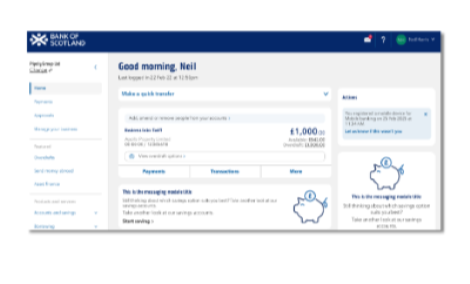
If you see the new look, use these steps
- Select 'Manage your business' from the menu on the left-hand side of the screen, then ‘Your business’ tab.
- Under Business contact details, select 'Email and phone numbers'.
- In the 'Business' tab, you'll find your business phone numbers.
Important
You must add your new number before you can remove the old one.
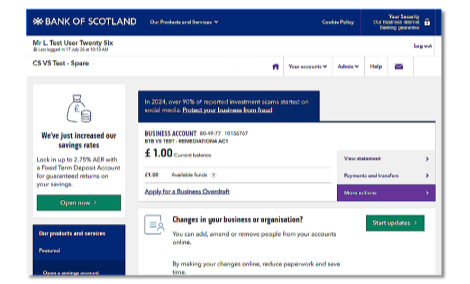
If you don't see the new look, use these steps
- Select 'Admin' in the top of the page.
- Under Business contact details, select 'Email and phone numbers'.
- In the 'Business' tab, you'll find your business phone numbers.
Important
You must add your new number before you can remove the old one.
-
The easiest way to update your business phone number is in Business Internet Banking. If you’re not online find out how to register.
If you’re unable to update this online, you can also complete and post a form.
Update your business email address
To update your business email address using Business Internet Banking, you'll need to log in. Log in to Business Internet Banking
If you're a Full Access User, you can update your business email address in Business Internet Banking and the app.
If you see the new look, use these steps
- Select 'Manage your business' from the menu on the left-hand side of the screen, then 'Your business' tab.
- Under Business contact details, select 'Email and phone numbers'.
- In the 'Business' tab, you'll find your business email address.
- Select 'Change' to make the amend.
If you don’t see the new look, use these steps
- Select 'Admin' from the top right of the page.
- Under Business contact details, select 'Email and phone numbers'.
- In the 'Business' tab, you'll find your business email address.
- Select 'Change' to make the amend.
-
- Log in to the app.
- Tap the ‘Profile and settings’ icon in the top-right corner.
- On the ‘Profile’ tab, under ‘Your business’, tap ‘Email and phone numbers’.
- Under ‘Business contact details’, tap ‘Email and phone numbers’.
- Tap ‘Edit’ next to the email address you want to update.
Update your business email address
It's easy in the app
- Log in to the app.
- Tap the ‘Profile and settings’ icon in the top-right corner.
- On the ‘Profile’ tab, under ‘Your business’, tap ‘Email and phone numbers’.
- Under ‘Business contact details’, tap ‘Email and phone numbers’.
- Tap ‘Edit’ next to the email address you want to update.
-
To update your business email address using Business Internet Banking, you'll need to log in. Log in to Business Internet Banking
If you're a Full Access User, you can update your business email address in Business Internet Banking and the app.
If you see the new look, use these steps
- Select 'Manage your business' from the menu on the left-hand side of the screen, then ‘Your business’ tab.
- Under Business contact details, select 'Email and phone numbers'.
- In the 'Business' tab, you'll find your business email address.
- Select 'Change' to make the amend.
If you don't see the new look, use these steps
- Select 'Admin' from the top right of the page.
- Under Business contact details, select 'Email and phone numbers'.
- In the 'Business' tab, you'll find your business email address.
- Select 'Change' to make the amend.

Not registered for the app?
Not registered for the app?