Change your business address
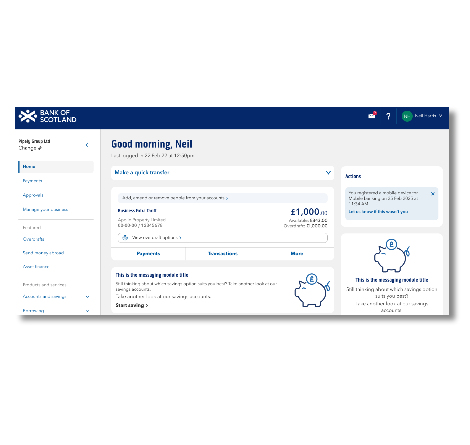
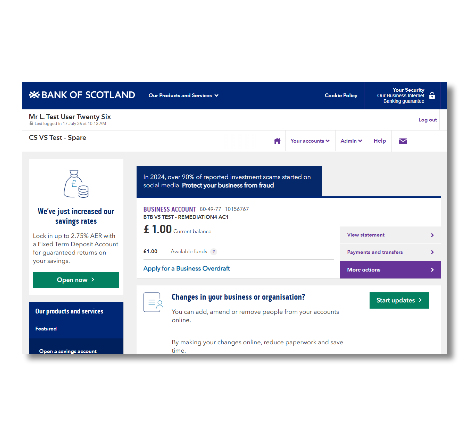
If you’re a Full Access User, you can update your business address, registered and mailing addresses with Business Internet Banking and the app. All users can update their home address.
Frequently asked questions
-
The fastest and easiest way to update your business address is online.
However, if you can’t use Business Internet Banking, you can still request the change by completing a paper form.
-
If you tell us using Business Internet Banking or the mobile banking app, changes will be made immediately. If we are unable to process your changes straight away we will tell you when you submit your request.
All changes requested using the form will take 4 working days from when we receive your request.
-
Business Address - Where your daily business activity takes place, also known as Trading Address.
Registered Address - This is your registered address.
Mailing Address - This is where we’ll send all your mail and bank statements.
Personal Address - Your home address, we might use this to confirm your identity.
-
Yes, when you change your personal address, either online or by form, it updates across both your business and personal accounts.
-
Only Full Access Users are able to change the business address. If you are not a Full Access user, you’ll only be able to update your Personal address. Learn more about access types and how to change them.
-
I don’t have a named Relationship Manager
All of your correspondence will be sent to your mailing address including your statements.
I have a named Relationship Manager
We usually use the Mailing Address for all correspondence, including statements and invoices. However, If you have a named Relationship Manager and want your business account statements and invoices sent to a different address, from other types of correspondence, you can do this online by changing the statement address or use Section 4 of the form to give a statement address for your sterling accounts.
If you need to update the statement address for your non-sterling accounts please send us a letter, signed by all signatories, to confirm the products and address you want updated. Post it to – Bank of Scotland, Commercial Servicing, Edinburgh, EH11 4DT.
-
You can also tell us about these changes in the form above. Just select ‘Yes’ to the question in Section 2, then enter your new business contact numbers and email address.
-
We need to be sure that the right people in your business are happy to update your business address. We do this by checking this against the people you have told us about in your bank mandate.
-
No, you can’t change your business details at a branch. But our colleagues can give you the change of business details form. You’ll need to sign this form in line with your mandate. You may need to take the form away and collect the signatures needed.
-
Find out how to update your personal details.